Follow these steps to create and configure a new Pre-Apprenticeship or Apprenticeship in UNITE.
Step 1: Open Programs under Training > Programs. 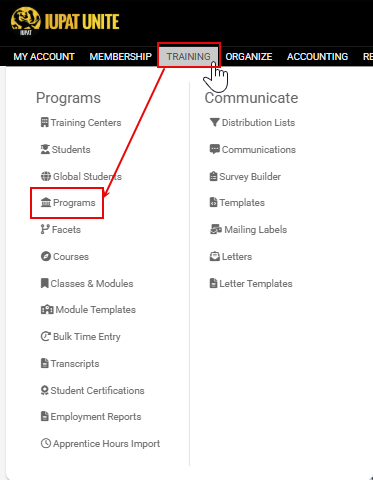
Step 2: Click the  Add button in the top right to create a new Program. Once you're on the "Add Program" screen, look for the fields boxed in red or tagged with a red asterisk. You'll need to fill those out first—the "Save" button won't show up until they're done. All other entries can be completed at your discretion.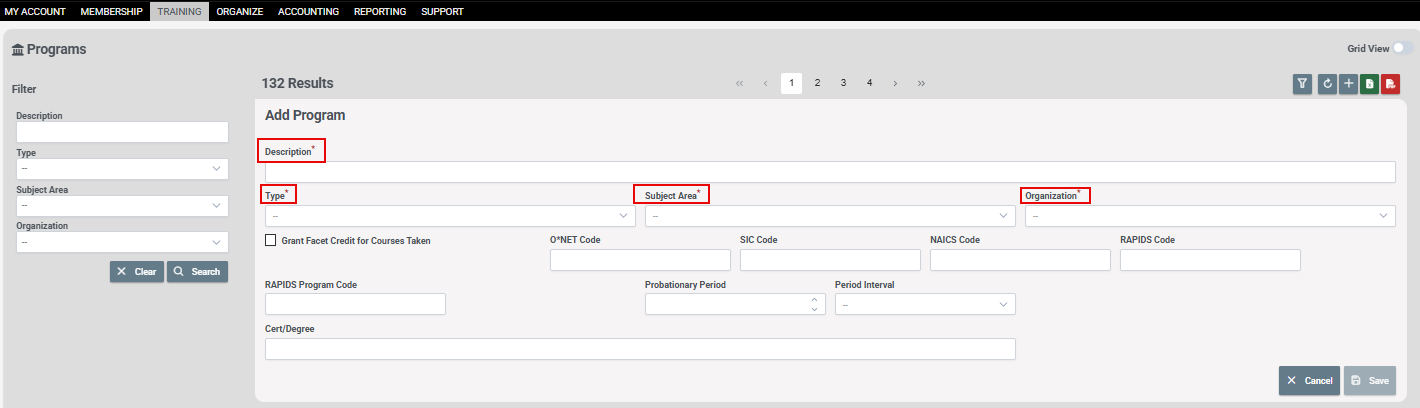
Step 3: Once you're Program is Saved you can now add any neccessary details to the Preapprenticeship or Apprenticeship. Courses, students, student group, facets, etc. 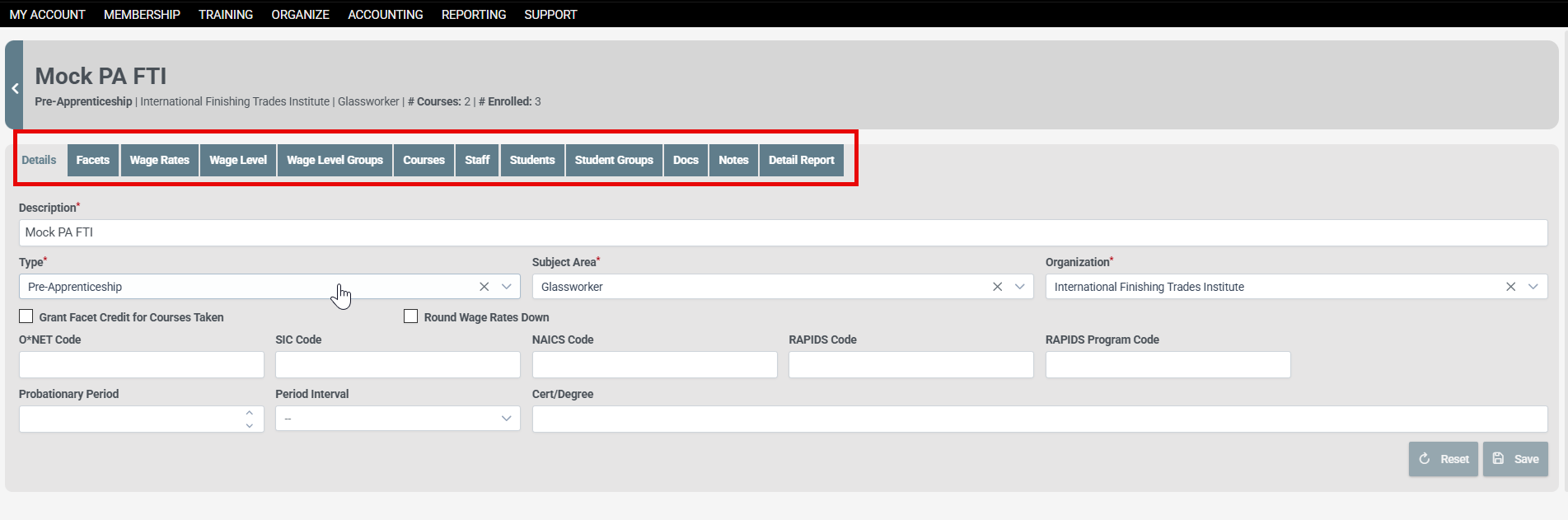
Step 4: After your Program is fully completed to your standard, you will then need to create a Module Template. This Module Template consists of the required courses students must completed to graduate from the Preapprenticeship or Apprenticeship.
(Please review this article if you need assistance creating a Module Template. https://helpdesk.iupat.org/a/solutions/articles/151000190342?portalId=151000060350)
Step 5: Next, navigate to Training-> Classes & Modules. If your module template isn't "Set to Live," the module will not appear when trying to search for the module in classes & modules. 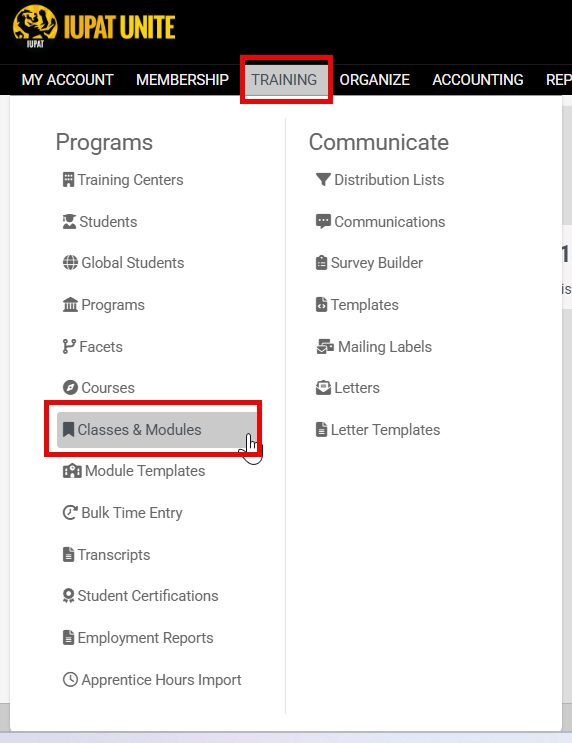
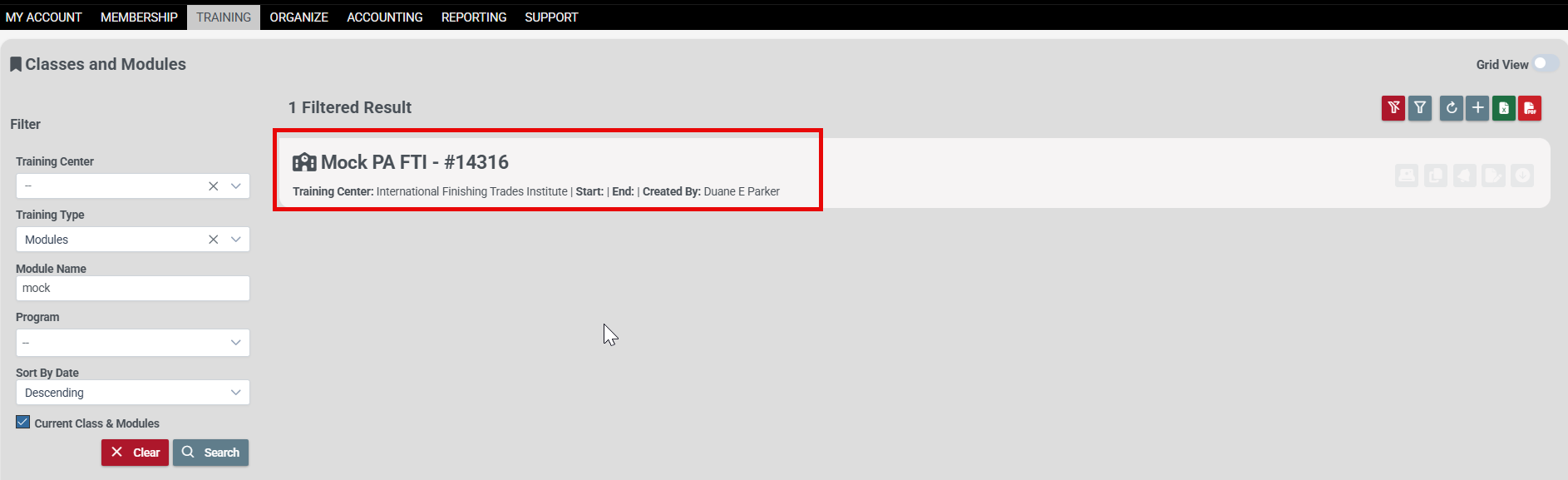
Step 6: Select your Pre-Apprenticeship or Apprenticeship to assign students and staff, set class schedules, and manage grades. 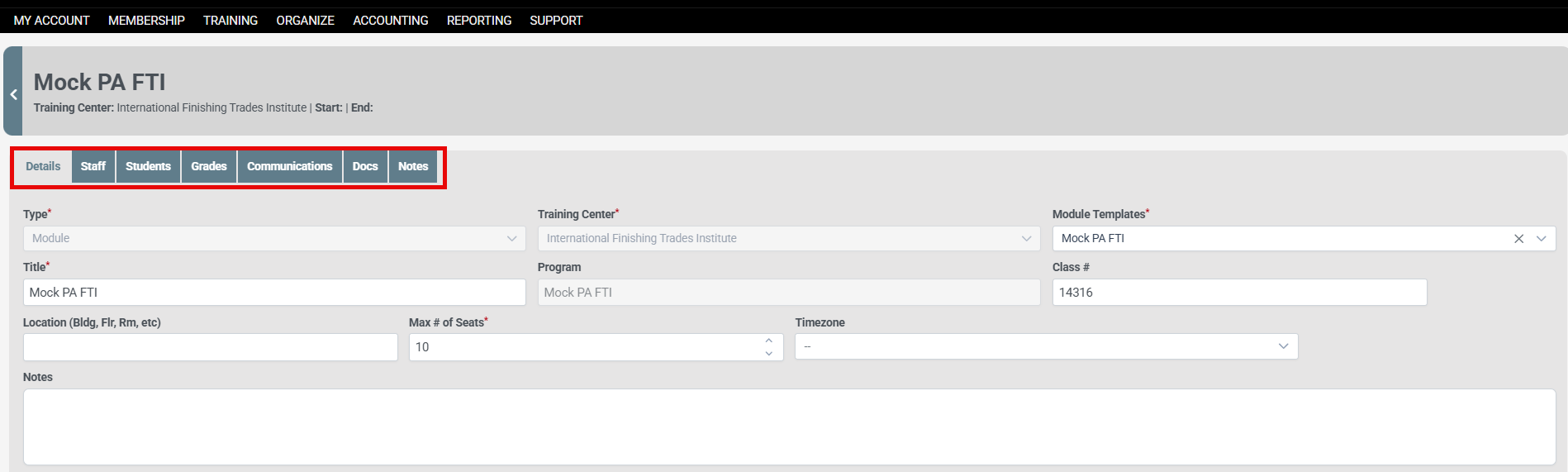
Was this article helpful?
That’s Great!
Thank you for your feedback
Sorry! We couldn't be helpful
Thank you for your feedback
Feedback sent
We appreciate your effort and will try to fix the article