All UNITE users who do not currently have DUO enabled are now required to set up Two-Factor Authentication (2FA) as part of our enhanced security measures.
If you do not have 2FA set up, or if it was previously disabled, you will be prompted to set it up after entering your UNITE username and password. A message will appear asking you to “Set Up Two-Factor Authentication."
Please note: You will not be able to proceed or access UNITE without completing the 2FA setup.
Setup Steps: This requirement applies to all students as well.
- Enter your log in credentials (username/email & password) and click “Submit”; after which you will click SIGN IN.
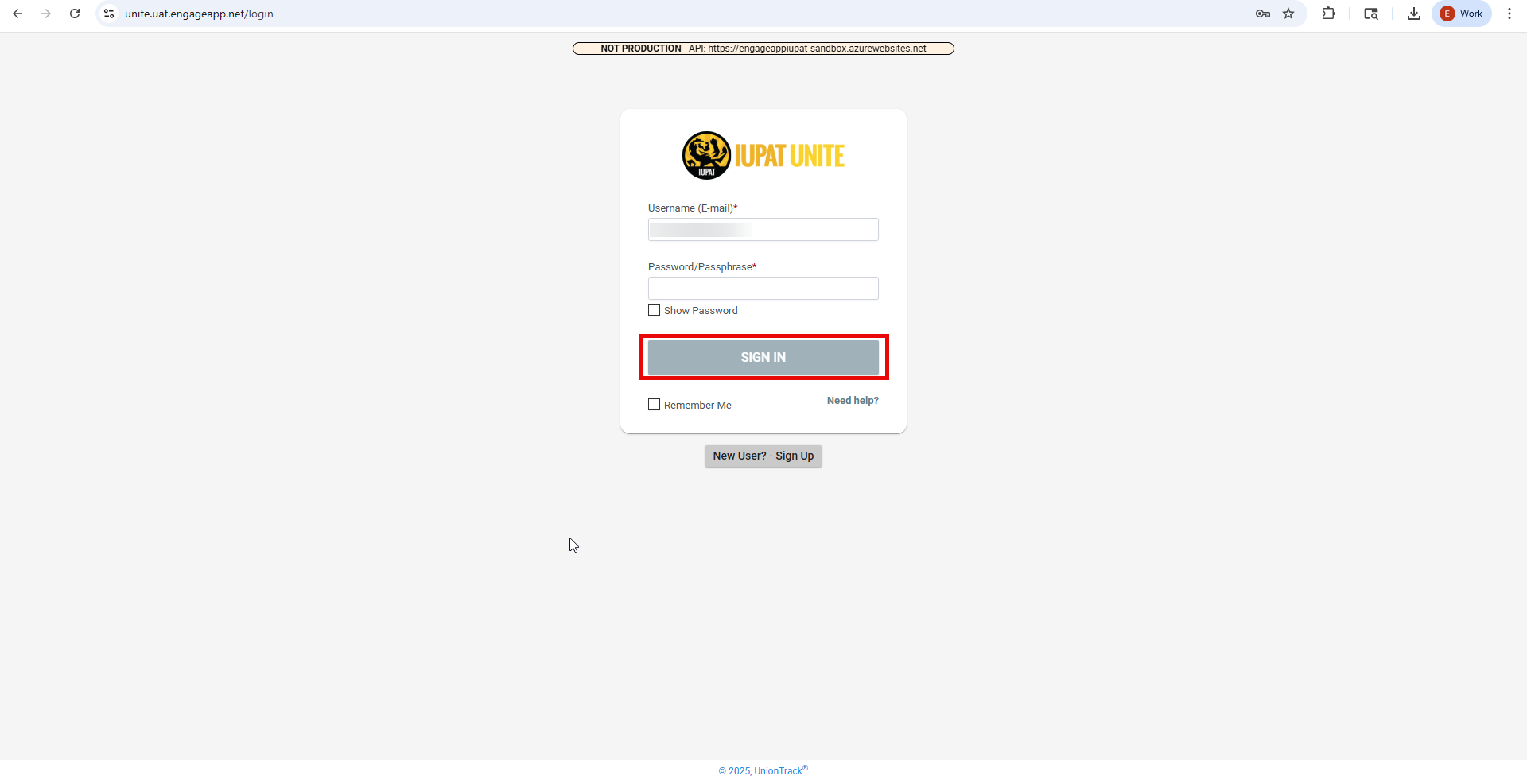
- If you do not have two-factor authentication set-up, the "Set Up Two Factor Authentication" notification will appear.
- Enter your mobile phone number when prompted.
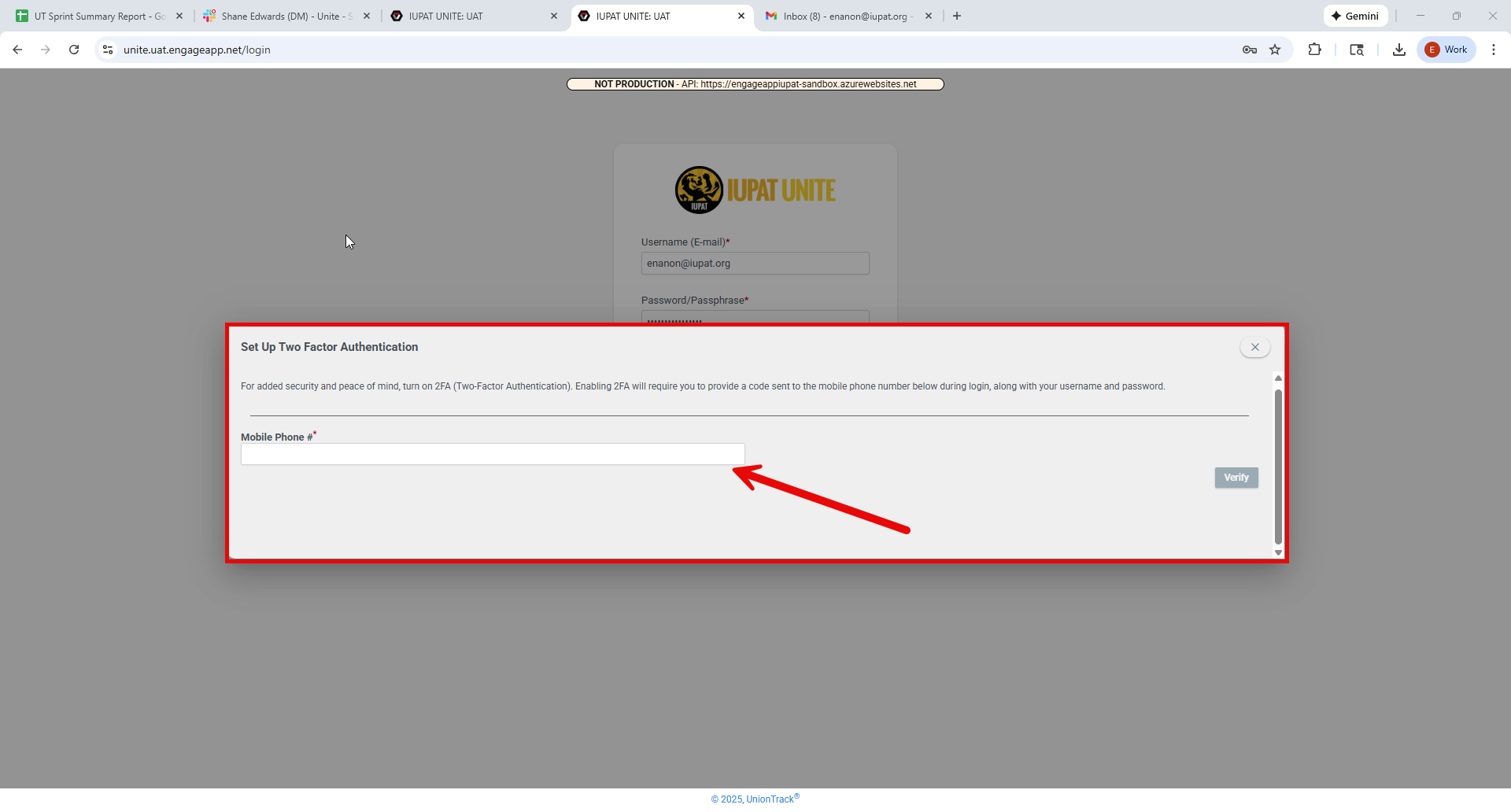
- Click Verify.
- The Two-Factor Authentication screen will open and prompt you to enter a verification code.
- Check your mobile device for the code sent to you.
- Enter the code and click "Submit" to complete the verification.
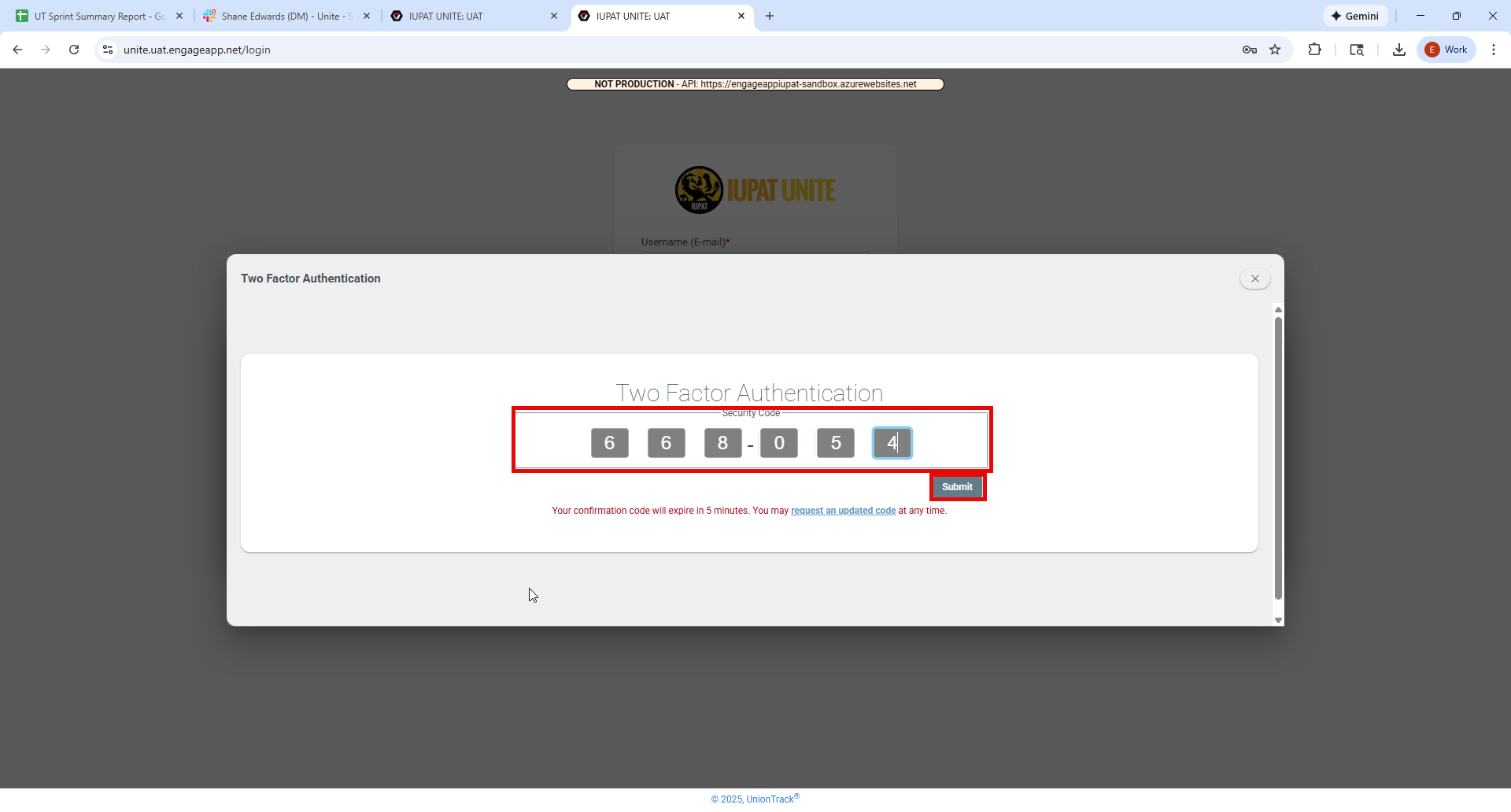
Once the code is successfully entered, you will be logged into UNITE.
Was this article helpful?
That’s Great!
Thank you for your feedback
Sorry! We couldn't be helpful
Thank you for your feedback
Feedback sent
We appreciate your effort and will try to fix the article