NOTE: You must be able to log in to your Google account to set up 2FA.
This article will help you set up Google Authenticator - an app on your mobile device - to be your 2FA device to help you log in to your Google account.
Click on the following link to go to your security page for your Google account. You may be asked to type in your email address and password to access this page.
https://myaccount.google.com/security
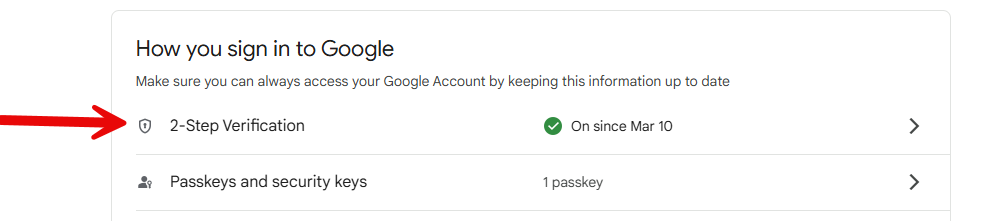
Look for the section titled How you sign in to Google and click on 2-Step Verification
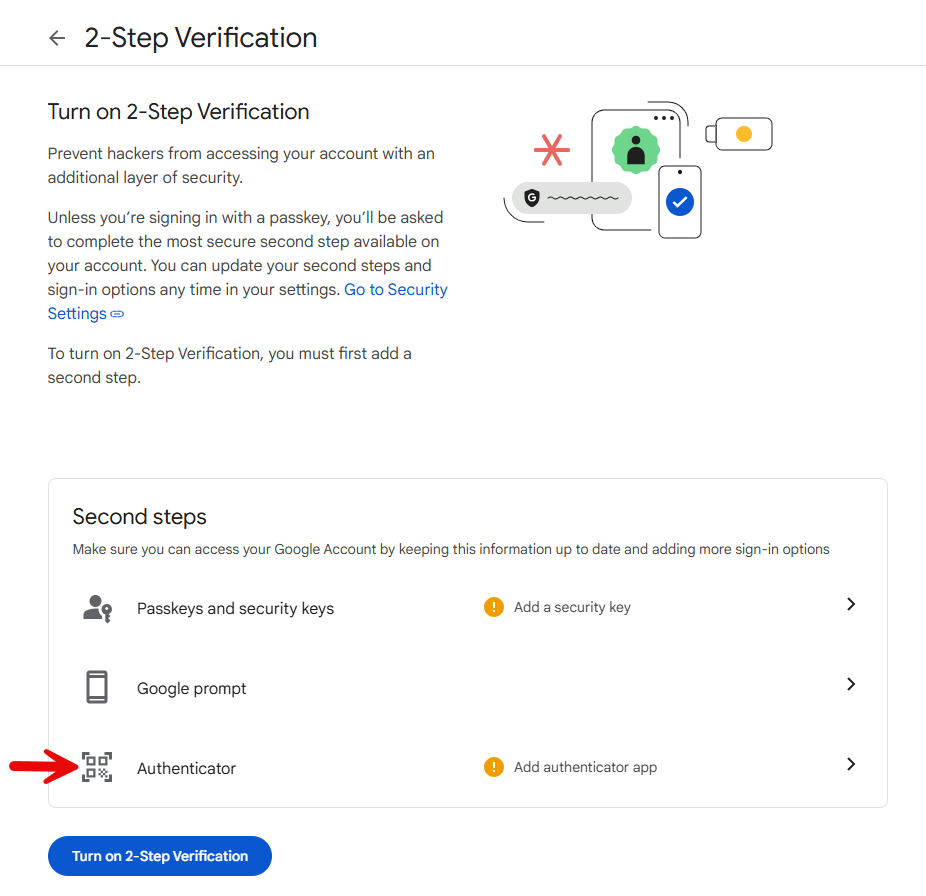
Click on Authenticator
On your phone, look for the Google Authenticator app. If you don't have it already, you will need to download it from the iOS App Store (for iPhones) or the Google Play Store (for Android devices like Samsung or Pixel).
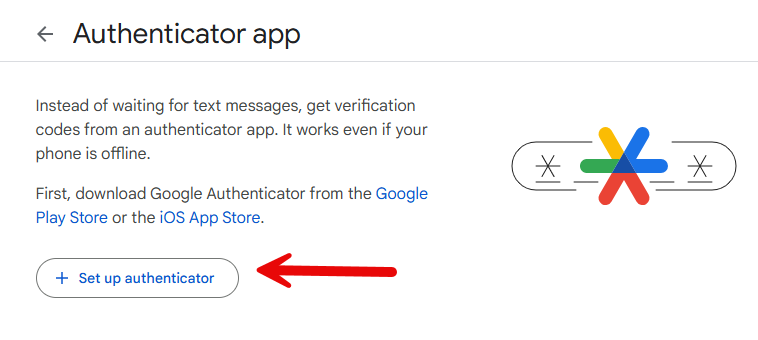
Click Set up authenticator
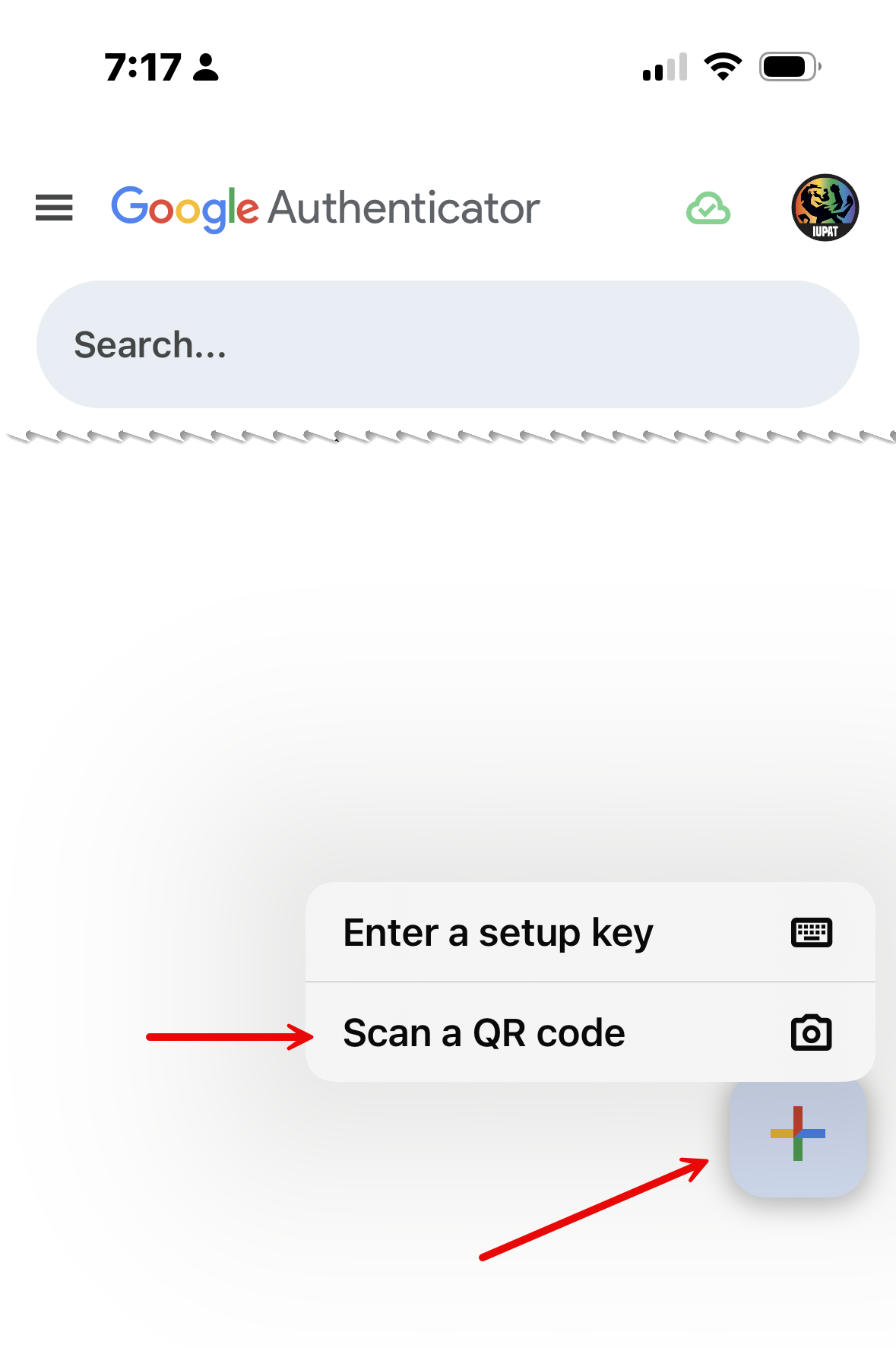
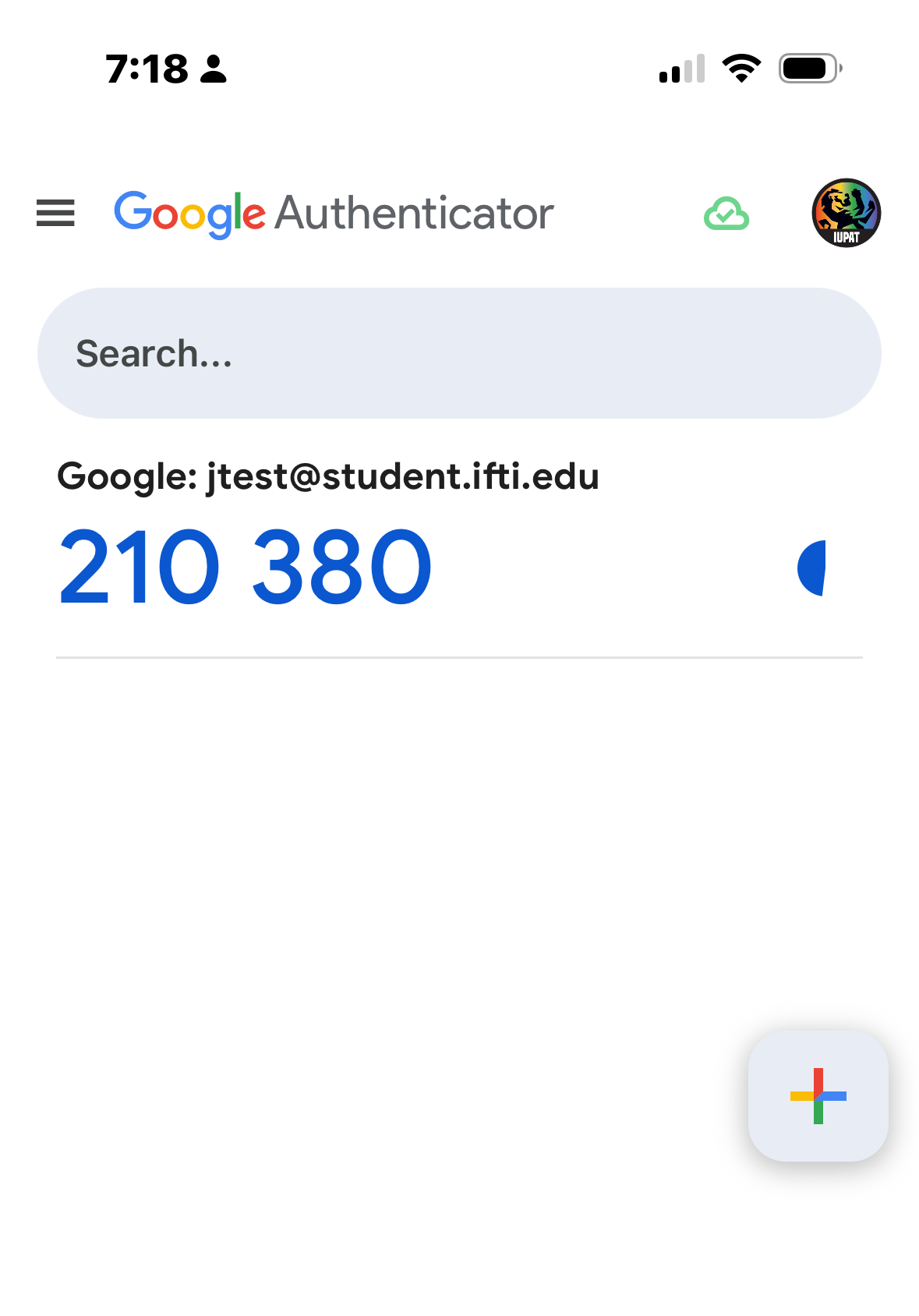
On your phone tap the + in the lower right corner. Then, tap Scan a QR code.
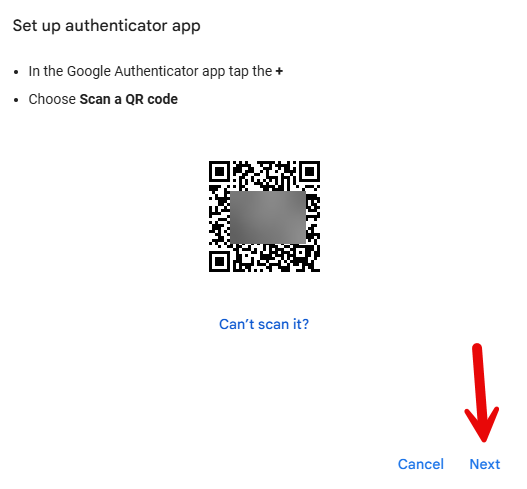
Then, aim the phone's camera at the QR code on your computer's screen. You might have to tap Allow on your phone to use the camera.
It should create a "tile" for your Google account that says Google: your email address
On your computer, click Next.
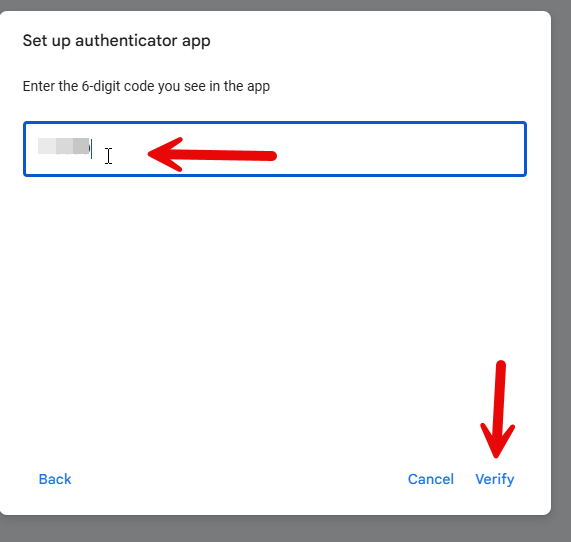
You will be asked to type in the code on your phone. This will be the blue numbers that appear under your email address on the Google authenticator app on your phone.
Then, click Verify to continue.
Click Turn on
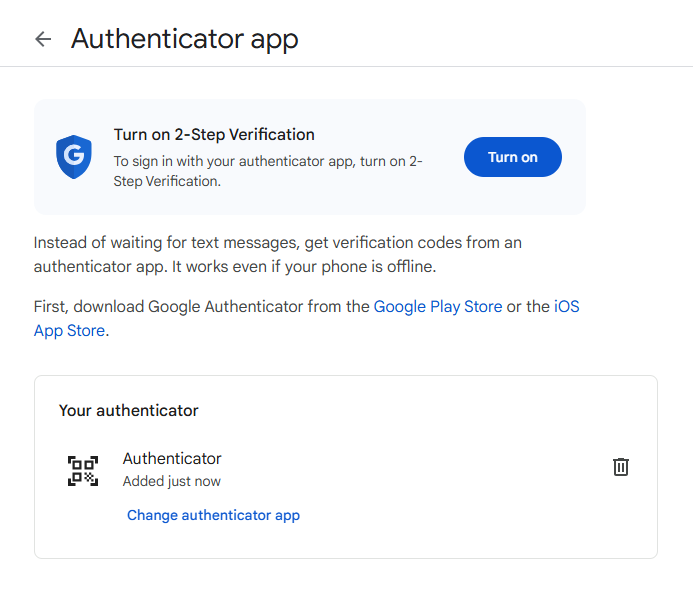
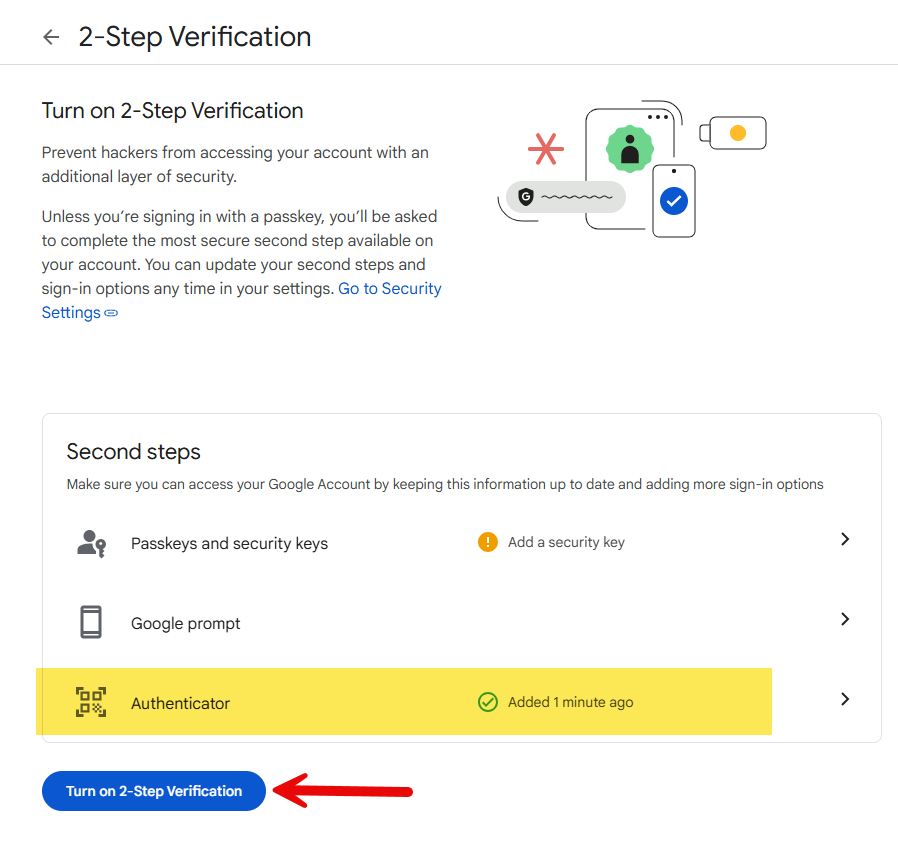
You should see a green check mark next to Authenticator. Click Turn on 2-Step Verification
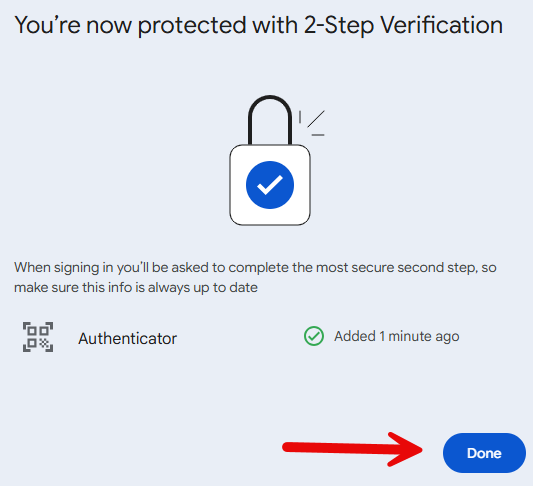
Click Done.
Was this article helpful?
That’s Great!
Thank you for your feedback
Sorry! We couldn't be helpful
Thank you for your feedback
Feedback sent
We appreciate your effort and will try to fix the article